In most cases the cartridge is fine. The message means the chip handshake did not complete — sometimes a dirty contact, sometimes a stale reading, sometimes a firmware update that decided to be fussy. Work through it in order and you will usually be printing in ten minutes.
Before you assume the warning means “faulty”: in January 2022 Canon’s own cartridges started triggering these warnings on Canon’s own printers, because a chip shortage forced Canon to ship supplies without chips. Canon’s advice to its own customers was to click “I agree” and carry on printing.
That is worth holding onto. The message tells you a chip was not read. It does not tell you the ink is bad.
Try these first, in this order
One at a time, testing after each. Most people never get past step 3.
- Take the cartridge out and put it back. Firmly, until it clicks. Half the calls we get are a cartridge that is not quite seated.
- Clean the contacts. The chip is the small gold or copper rectangle. Wipe it with a dry lint-free cloth — dry, not wet, never anything abrasive. Wipe the matching contacts inside the printer too. Fingerprints and ink smears are the single most common cause.
- Check you peeled everything off. Every tab, strip and orange clip. On some Brother and Epson cartridges there is a clear film over the chip that is easy to miss.
- Power-cycle properly. Off with the printer’s own button, unplug at the wall for 60 seconds, plug back in, on. This clears the cached cartridge state. A quick off-on often does not.
- Reseat one cartridge at a time. If several are flagged, remove them all, insert one, close the lid, let it read, repeat. This tells you whether it is one bad chip or the printer.
- Check it is the right cartridge for New Zealand. NZ printers take the same numbers as Australia, but not always the same as the US or Europe. An HP 63 bought overseas may not work here even though the number matches.
Still flagged? It depends on the brand
Brother — historically the most tolerant
Brother has generally been the easiest brand for third-party consumables. In March 2025, when users alleged that firmware updates were degrading print quality with non-Brother supplies, Brother’s response was that its firmware updates “do not block the use of third-party ink and toner cartridges in our machines”. Those claims remain disputed rather than settled — but the sensible precaution is the same on any brand: if third-party cartridges are working for you, do not let the printer update itself unasked.
HP — Dynamic Security
HP checks cartridge chips and can stop non-HP chips from working, and firmware updates can change the rules after you bought. Set firmware updates to manual before you have a problem. The full picture, including HP+ and Instant Ink, is in our HP guide.
Epson — stubborn caching
Epson is the brand most likely to be fixed by the 60-second unplug in step 4. If you get “cannot recognise” on a cartridge you have just refilled, the chip is reporting empty rather than absent — a different problem, and the chip needs resetting or replacing.
Canon — usually the mildest
Canon typically lets you print anyway. You get a warning that the cartridge is not genuine and that ink level monitoring will be disabled, plus a prompt to acknowledge it — often holding Stop/Reset for 5–10 seconds. You lose the ink gauge, you keep printing.
If it turns out the cartridge really is faulty
Tell us the printer model, the cartridge number and the exact wording on the screen. If it is one of ours and it is faulty, we replace it. If it is a firmware lockout we will tell you that too, even though it means we are not selling you anything.
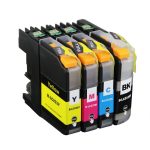
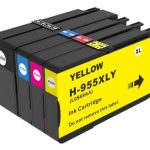
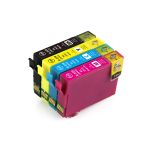
Still not recognised?
Call 0800 INKINK. That combination — model, cartridge number, exact message — is usually enough for us to know whether it is a contact, a chip, a firmware lockout, or a genuinely faulty cartridge.