Posted on

EcoTank and MegaTank: Filling Them Properly, and the Three Things That Kill Them

Tank printers changed the running-cost maths completely — Epson EcoTank, Canon MegaTank, HP Smart Tank all work the same way. They also fail in different ways from cartridge printers, and the advice that works on a cartridge machine can make a tank machine worse.

What is actually different

There is no cartridge. The printer has built-in reservoirs that you refill from a bottle. The print head is permanent and stays in the printer for its whole life.

Two consequences that matter:

  1. Ink is cheap, the head is not. On a cartridge printer, a blocked head often gets replaced along with the cartridge. On a tank printer there is nothing to replace — if the head dies, the printer is done. Head maintenance matters much more here.
  2. You cannot tell the ink level from the software alone. Look at the actual tanks. The window on the front is the honest gauge.

Filling it properly

  • Fill to the upper line, not to the top. The tanks need air space. Overfilling causes leaks and, on some models, ink flooding into the waste pad.
  • Match the colour to the tank. Modern Epson bottles are keyed so the wrong colour will not seat — do not force one that will not go.
  • Do not top up a tank that is only slightly down. Wait until it is near the lower line. Constant topping up makes it impossible to judge consumption and increases the chance of spills.
  • Keep the printer level while filling and afterwards.

Which bottle does an EcoTank take?

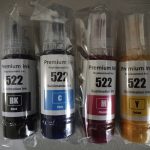
Epson’s bottle numbering is not obvious and it is the single most common EcoTank ordering mistake. The bottle number is not the printer number.

Bottle Common New Zealand models
502 ET-2700, ET-2750, ET-3700, ET-4750 and similar
522 ET-1110, ET-1810, ET-2710, ET-2720, ET-2810, ET-2820, ET-2910, ET-2920, ET-4700, ET-4800, ET-4900
542 / 552 / 664 / 774 Larger and older EcoTank and ET-M models

Check the label on the back of the printer against the product page before ordering. If in doubt, read the model to us on 0800 INKINK.

Buy it here
Epson 522 EcoTank Ink Bottle - Professional Recommended
Fits 7 printer models, including ET-1110, ET-1810, ET-2710 and more.
$9.98incl GSTIn stock in AucklandAdd to cart

The three things that kill tank printers

1. Long gaps between jobs

This is the big one. The head is permanent, and permanent heads dry out. Print one colour page a week. A page of coloured text is enough. It costs fractions of a cent and it is the single most effective thing you can do.

2. Switching off at the wall

Turn the printer off with its own power button. That parks the head on its capping station, which seals it against air. Killing power at the wall leaves the head exposed. On a tank printer this is not a minor habit — it is the difference between a head that lasts years and one that does not.

3. Running a tank dry

Letting a tank empty completely can draw air into the ink line, and clearing that is much harder than a normal clog. Refill before it hits the lower line.

If it is already printing badly

Same order as any inkjet: nozzle check first, then two cleaning cycles and no more, then leave it off overnight using its own button. Cleaning cycles on tank printers still fill a waste pad, and on Epson models a counter tracks it — when it fills, the printer stops until it is serviced.

If it is still blocked after that, a proper cleaning kit is the next step, and on a tank printer it is worth doing carefully because there is no head to replace.
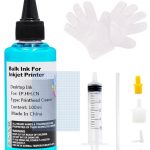
Buy it here
Printer Head Nozzle Cleaning Kit
$19.99incl GSTIn stock in AucklandAdd to cart

The full method, including what not to put through a print head, is in our print head guide.

Is a tank printer right for you?

Honestly: it depends on volume, and the break-even is higher than the advertising suggests. Tank machines cost more up front. If you print a few hundred pages a year, a cartridge printer is fine and you will never recover the difference. If you print thousands, the tank machine pays for itself and keeps going.

Work out your own number with the method in our cost per page guide rather than taking anyone’s word for it.
Posted on

Pigment or Dye? Why Your Printer Has Two Kinds of Black

Dye and pigment are two genuinely different kinds of ink, they behave differently on paper, and using the wrong one is why some prints run when they get damp and others fade on the fridge. Most people never hear about this until something has already gone wrong.

The difference in one table

Dye ink Pigment ink
What it is Colour dissolved in liquid Solid colour particles suspended in liquid
On the page Soaks into the fibres Sits on the surface
Colour Brighter, wider range — better for photos Slightly flatter, but crisper edges on text
Water Runs if it gets wet Water resistant once dry
Light Fades faster Holds colour much longer
Clogging Less prone More prone if the printer sits unused

Which one is in your printer?

Most home inkjets use both, and this catches people out.

A very common arrangement — Canon PGI/CLI, HP OfficeJet, many Epson — is:

  • Pigment black for text, so documents are sharp and do not run
  • Dye colour for photos and graphics, so colours are vivid

That is why Canon printers have a PGBK cartridge and a BK cartridge, and why they are not interchangeable even though both are black. PGBK is the pigment one for paper documents. BK is the dye one used in photo printing. Fitting one where the other belongs does not work.

Canon owners, the practical version: if your text is coming out grey and washed out on plain paper, you are probably out of PGBK — not out of the other black.

When it actually matters

Choose pigment when:

  • The print will be handled, filed, or might get damp — invoices, labels, shipping documents, anything going in a shed or a van
  • It needs to last years without fading
  • You are printing on labels or coated stock where ink cannot soak in

Choose dye when:

  • You are printing photos on photo paper
  • Colour vibrancy matters more than durability
  • The printer gets used regularly — dye is more forgiving of gaps between jobs

Refill ink: this is where it goes wrong

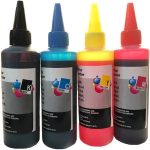
If you are topping up a tank printer or refilling a cartridge, the ink type has to match what the printer expects. Putting pigment through a system designed for dye can block the head, and the damage is not always reversible.

Our refill bottles state which they are. If you are not sure what your machine takes, ask before you pour — this is one of the few mistakes in printing that costs you the printer rather than the cartridge.

Buy it here
Epson Dye Refill Ink, 100 ml - Professional Recommended
$8.98incl GSTIn stock in AucklandAdd to cart
Epson 522 EcoTank Ink Bottle - Professional Recommended
Fits 7 printer models, including ET-1110, ET-1810, ET-2710 and more.
$9.98incl GSTIn stock in AucklandAdd to cart

Sublimation ink is a third thing entirely

Worth saying because it comes up: sublimation ink is not for paper. It is designed to be printed onto transfer paper and then heat-pressed onto polyester fabric or coated mugs, where it turns to gas and bonds into the material.

It looks dull and wrong when printed straight onto paper — that is expected, not a fault. And a printer that has run sublimation ink should not be switched back to normal ink.

Buy it here
Sublimation Ink for Epson, 100 ml - Professional Recommended
$14.98incl GSTIn stock in AucklandAdd to cart

Not sure which your printer uses?

Call 0800 INKINK with the model number. It takes us seconds, and it is worth asking before you buy refill ink rather than after.

Posted on

Cost Per Page: Is the XL Cartridge Actually Worth It?

“Is the XL worth it?” is the most common question we get after “which one fits my printer”, and it has a real answer that takes about thirty seconds to work out. The number you want is cost per page, and the price on the shelf tells you almost nothing about it.

The arithmetic

cost per page = price ÷ page yield

That is the whole method. The only hard part is finding the yield, and it is usually printed on the box or on the product page. Ours is on every product page where the manufacturer publishes one.

A worked example with a cartridge we sell:

Brother TN-2445
Price (incl GST) $29.98
Rated yield approx. 3,000 pages at 5% coverage
Cost per page about 1.0 cent

Now do the same sum for whatever you were about to buy instead. If one cartridge is half the price but a third of the pages, it is the more expensive one.

Why XL almost always wins

A standard and an XL cartridge are the same plastic shell, the same chip and the same manufacturing. The XL just has more ink in it. You are paying twice for the shell when you buy two standards instead of one XL.

Typical shape of it, across every brand:

  • The XL costs roughly 1.5–2× the standard
  • The XL holds roughly 2–3× the ink

So the XL usually works out cheaper per page. Two situations where it does not:

  • You print very rarely. A big cartridge that dries out before you use it is not a bargain. If you print less than a few pages a month, buy standard and buy fresh.
  • You are about to replace the printer. Do not stock up on ink for a machine you are retiring.

“5% coverage” — what that actually means

Every published yield figure assumes 5% coverage: roughly a page of ordinary double-spaced text. It is an ISO standard so that brands can be compared, not a promise about your printing.

If you print photos, dense colour, or anything with a background, you will get a fraction of the rated pages. That is not a faulty cartridge and it is not a dishonest yield figure — it is the same standard applied to a different job.

Rule of thumb: text documents land near the rated yield. Presentations with coloured backgrounds land near half. Photos land nowhere near it — count photos, not pages.

The number most people forget: the printer itself

Cheap inkjets are sold below cost and paid for by the cartridges. Over three years, ink very often costs more than the printer did.

So if you are choosing a new machine, work out the cost per page of its cartridges before you buy it, not after. A $99 printer with 4 cent pages is worse value than a $299 printer with 1 cent pages if you print more than about 5,000 pages.

This is also why the tank printers — Epson EcoTank, Canon MegaTank, HP Smart Tank — exist. They cost more up front and dramatically less per page. Whether that is right for you depends entirely on how much you actually print.

Where third-party cartridges fit

We are not going to publish a percentage saving, because genuine prices move and a comparison is only honest against a real price on the day you buy.

What we will tell you is how to check: take our price and yield off the product page, work out the cents per page, then do the same sum against whatever your usual retailer is charging today. Two sums, one minute, and you will have a number that is actually true for you rather than a marketing claim.

Buy it here
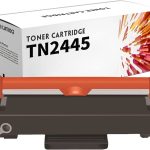
Brother TN2445 Toner Cartridge - Professional Recommended
Fits 5 printer models, including HLL2310D, HLL2375DW, MFCL2713dw and more.
$29.98incl GSTIn stock in AucklandAdd to cart
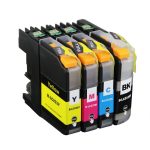
Brother LC233 Ink Cartridge - Professional Recommended
Fits 6 printer models, including DCPJ4120DW, MFCJ4620DW, MFCJ480DW and more.
$9.98incl GSTIn stock in AucklandAdd to cart
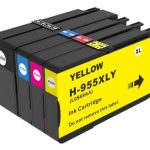
HP 955XL Ink Cartridge - Professional Recommended
Fits 9 printer models, including OfficeJet Pro 7740, OfficeJet Pro 8210, OfficeJet Pro 8710 and more.
$28.98incl GSTIn stock in AucklandAdd to cart

Not sure what your printer costs to run?

Call 0800 INKINK with the model. We can usually tell you the cents per page off the top of our heads, and occasionally the honest answer is that the machine is expensive to run and you would be better off replacing it.

Posted on

“Cartridge Not Recognised”: What That Message Means, and How to Get Printing Again

In most cases the cartridge is fine. The message means the chip handshake did not complete — sometimes a dirty contact, sometimes a stale reading, sometimes a firmware update that decided to be fussy. Work through it in order and you will usually be printing in ten minutes.

Before you assume the warning means “faulty”: in January 2022 Canon’s own cartridges started triggering these warnings on Canon’s own printers, because a chip shortage forced Canon to ship supplies without chips. Canon’s advice to its own customers was to click “I agree” and carry on printing.

That is worth holding onto. The message tells you a chip was not read. It does not tell you the ink is bad.

Try these first, in this order

One at a time, testing after each. Most people never get past step 3.

  1. Take the cartridge out and put it back. Firmly, until it clicks. Half the calls we get are a cartridge that is not quite seated.
  2. Clean the contacts. The chip is the small gold or copper rectangle. Wipe it with a dry lint-free cloth — dry, not wet, never anything abrasive. Wipe the matching contacts inside the printer too. Fingerprints and ink smears are the single most common cause.
  3. Check you peeled everything off. Every tab, strip and orange clip. On some Brother and Epson cartridges there is a clear film over the chip that is easy to miss.
  4. Power-cycle properly. Off with the printer’s own button, unplug at the wall for 60 seconds, plug back in, on. This clears the cached cartridge state. A quick off-on often does not.
  5. Reseat one cartridge at a time. If several are flagged, remove them all, insert one, close the lid, let it read, repeat. This tells you whether it is one bad chip or the printer.
  6. Check it is the right cartridge for New Zealand. NZ printers take the same numbers as Australia, but not always the same as the US or Europe. An HP 63 bought overseas may not work here even though the number matches.

Still flagged? It depends on the brand

Brother — historically the most tolerant

Brother has generally been the easiest brand for third-party consumables. In March 2025, when users alleged that firmware updates were degrading print quality with non-Brother supplies, Brother’s response was that its firmware updates “do not block the use of third-party ink and toner cartridges in our machines”. Those claims remain disputed rather than settled — but the sensible precaution is the same on any brand: if third-party cartridges are working for you, do not let the printer update itself unasked.

HP — Dynamic Security

HP checks cartridge chips and can stop non-HP chips from working, and firmware updates can change the rules after you bought. Set firmware updates to manual before you have a problem. The full picture, including HP+ and Instant Ink, is in our HP guide.

Epson — stubborn caching

Epson is the brand most likely to be fixed by the 60-second unplug in step 4. If you get “cannot recognise” on a cartridge you have just refilled, the chip is reporting empty rather than absent — a different problem, and the chip needs resetting or replacing.

Canon — usually the mildest

Canon typically lets you print anyway. You get a warning that the cartridge is not genuine and that ink level monitoring will be disabled, plus a prompt to acknowledge it — often holding Stop/Reset for 5–10 seconds. You lose the ink gauge, you keep printing.

If it turns out the cartridge really is faulty

Tell us the printer model, the cartridge number and the exact wording on the screen. If it is one of ours and it is faulty, we replace it. If it is a firmware lockout we will tell you that too, even though it means we are not selling you anything.

Buy it here
Brother LC233 Ink Cartridge - Professional Recommended
Fits 6 printer models, including DCPJ4120DW, MFCJ4620DW, MFCJ480DW and more.
$9.98incl GSTIn stock in AucklandAdd to cart
HP 955XL Ink Cartridge - Professional Recommended
Fits 9 printer models, including OfficeJet Pro 7740, OfficeJet Pro 8210, OfficeJet Pro 8710 and more.
$28.98incl GSTIn stock in AucklandAdd to cart
Epson T220XL Ink Cartridge - Professional Recommended
Fits 10 printer models, including WF2630, WF2650, WF2660 and more.
$9.00incl GSTIn stock in AucklandAdd to cart

Still not recognised?

Call 0800 INKINK. That combination — model, cartridge number, exact message — is usually enough for us to know whether it is a contact, a chip, a firmware lockout, or a genuinely faulty cartridge.

Posted on

HP Instant Ink, HP+ and Dynamic Security: What You Are Actually Agreeing To

HP runs three separate things that all affect which cartridges your printer will accept, and they get muddled together constantly — including by people selling you printers. They are not the same, they have different consequences, and one of them cannot be undone. Here is what each one actually commits you to.

The three things, kept apart

What it is What it costs you
Instant Ink A subscription. You pay per page printed, HP posts you cartridges automatically. The cartridges belong to the service. Cancel and they stop working — you go back to buying your own.
HP+ An enrolment offered at printer setup, usually in exchange for extra warranty and free Instant Ink months. The printer will only ever accept genuine HP cartridges. It also has to stay connected to the internet. This cannot be reversed.
Dynamic Security A chip-checking system built into most HP printers, whether or not you enrolled in anything. Cartridges without an HP chip may be rejected, and a firmware update can change the rules after you have bought.

HP+ is the one to be careful about

Instant Ink you can cancel. Dynamic Security you can manage. HP+ is a one-way door. It is offered during setup, it sounds like a free upgrade, and once accepted the printer is locked to genuine HP supplies for the rest of its life.

If you are setting up a new HP printer and you intend to use third-party cartridges, decline HP+ at setup. There is no way back afterwards, and no third-party cartridge will help you.

Dynamic Security, and what happened in court

HP publicly operates Dynamic Security, which checks cartridge chips and can stop cartridges without an HP chip from working. Firmware updates have at various times changed how strictly this behaves — cartridges that worked yesterday can stop working after an overnight update.

This has been litigated. In March 2025 HP settled a US class action brought over printers locking out third-party toner. HP paid no damages and admitted nothing, but agreed to keep disclosing its use of Dynamic Security and to keep giving users the choice to install or decline firmware updates.

Note what that settlement does and does not do. It preserves your right to decline an update. It does not promise that any given cartridge keeps working.

The two minutes that prevent most of this

Turn off automatic firmware updates on any HP printer running third-party cartridges.

Printer Settings → Services or Preferences → Printer Update → set to “Notify me” or “Do not check”. On the HP Smart app: Printer Settings → Advanced → Printer Update.

Do it before you have a problem. Once an update has installed, going back is difficult and on many models impossible.

This is why every HP product page on this site carries a firmware notice next to the price rather than buried in an FAQ. We would rather you knew before you bought.

Where you stand in New Zealand

Using a third-party cartridge does not automatically void your printer warranty. Under the Consumer Guarantees Act 1993, goods must be of acceptable quality, and that guarantee sits with the retailer and manufacturer regardless of what a warranty document says. For a manufacturer to decline a repair on these grounds, the fault would have to have actually been caused by the cartridge — a leak that damaged the head, for example. A rejected chip is not damage.

This is general information about how the law works, not legal advice on your situation. Consumer Protection NZ and Consumer NZ both publish plain-English guides to CGA rights.

Our HP cartridges

Every HP product page here states which printers it fits and carries the firmware notice. If an update has already locked you out, call us before buying more cartridges — the answer depends on your exact model, and sometimes the honest answer is that there isn’t one.

Buy it here
HP 955XL Ink Cartridge - Professional Recommended
Fits 9 printer models, including OfficeJet Pro 7740, OfficeJet Pro 8210, OfficeJet Pro 8710 and more.
$28.98incl GSTIn stock in AucklandAdd to cart
HP 905XL Ink Cartridge - Professional Recommended
Fits 4 printer models, including OfficeJet Pro 6960 6970 696x 697x, Officejet 6950, Officejet Pro 6960 and more.
$19.96incl GSTIn stock in AucklandAdd to cart
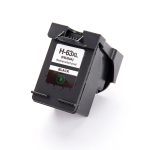
HP 63XL Black Ink Cartridge - Professional Recommended
Fits 9 printer models, including Deskjet 1111, Deskjet 2130, Deskjet 3630 and more.
$34.49incl GSTIn stock in AucklandAdd to cart

Still not sure what you have?

Call 0800 INKINK and tell us the printer model and whether you remember accepting anything during setup. We can usually work out from that whether you are on HP+, and therefore whether we can help you at all.

Posted on

Brother Toner and Drum Unit: Two Different Parts, and Which One You Actually Need

If your Brother laser printer is asking you to replace the drum, a new toner cartridge will not fix it. These are two different parts, they wear out at different rates, and confusing them is the single most common reason a Brother laser owner buys the wrong thing.

Two parts, not one

Toner cartridge (TN…) Drum unit (DR…)
What it is The powder that makes the marks The green roller that carries the image onto the paper
How long Roughly 1,000–3,000 pages depending on the model Roughly 12,000 pages — several toners
What you see Faded print, “Replace Toner”, “Toner Low” Repeating marks or bands down the page, “Replace Drum”, “Drum End Soon”
Typical cost Lower, bought often Higher, bought rarely

On most Brother mono lasers the two clip together into one assembly, which is exactly why people think they are one part. Take the assembly out and there is a small lever — usually green — that releases the toner cartridge from the drum.

How to tell which one you need

Read the message, not the symptom.

  • “Toner Low” / “Replace Toner” → you need a TN cartridge
  • “Drum End Soon” / “Replace Drum” → you need a DR drum unit. The toner is probably fine.
  • The same mark in the same place on every page, roughly every 94 mm → drum
  • Print gets pale from one side, or pale overall → toner

Before you buy a drum: take the drum and toner assembly out, hold it level and rock it gently side to side a few times, then put it back. That redistributes the toner and clears a surprising number of “faded print” complaints for nothing.

“Replace Drum” when you have just fitted a new drum

The printer does not measure the drum. It counts pages, and the counter has to be reset by hand after you fit a new one. If you skip the reset, the printer keeps saying “Replace Drum” forever.

On most Brother mono models: open the front cover, leave the drum assembly in, press OK or hold Go for about four seconds until the Drum light goes out, then close the cover. The exact sequence differs by model — if yours does not respond to that, call us and we will look up your model.

Which parts fit which printer

Brother pairs a TN with a DR in families. Two of the most common in New Zealand:

  • HL-L2310D, HL-L2375DW, MFC-L2713DW, MFC-L2770DW, MFC-L2775DW → toner TN-2445, drum DR-2425
  • HL-1110, HL-1210W, DCP-1510, DCP-1610W, MFC-1810, MFC-1910W → toner TN-1070, drum DR-1070

The model number is on the label on the back or underneath the printer — not the serial number.

Brother toner
Brother TN2445 Toner Cartridge - Professional Recommended
Fits 5 printer models, including HLL2310D, HLL2375DW, MFCL2713dw and more.
$29.98incl GSTIn stock in AucklandAdd to cart

Does a compatible toner shorten the drum’s life?

This comes up constantly and the honest answer is: a badly made one can. Toner particle size and charge characteristics vary between manufacturers, and coarse powder is harder on the drum surface. That is an argument for buying decent compatible toner, not for paying genuine prices — but it is a real difference, and anyone telling you all compatibles are identical is selling you something.

What we can tell you is what we do: we buy on tested batches, not on price alone, and we replace anything that causes print defects within 12 months.

Not sure?

Call 0800 INKINK with the printer model and the exact wording on the display. That combination is almost always enough for us to tell you whether it is toner, drum, or neither.

Posted on

Streaks, Missing Colours and Faded Prints: How to Unclog a Print Head Without Wrecking It

Most “my printer is broken” calls we get on 0800 INKINK are a dried print head, not a dead printer. In about eight cases out of ten you can fix it yourself — twenty minutes for a light clog, overnight for a stubborn one. But the right method depends on where your print head lives, and getting that wrong is how people turn a $20 problem into a $300 one.

First, find out what kind of printer you have

This is the single most important thing on this page, and almost no guide mentions it.

Print head location Brands / models What this means for you
Fixed inside the printer All Epson, all Brother, HP OfficeJet Pro, HP Smart Tank Cleaning has to be done in place, through the ink inlets
Removable Canon MAXIFY and PIXMA G (MegaTank), some HP The head lifts out and can be soaked properly — the most effective method there is
Built into the cartridge HP 61/63/65/67, HP 302/304, Canon PG- and CL- series Replacing the cartridge replaces the head. A soak can still revive one — worth trying before you bin it

How to tell in ten seconds: look at your old cartridge. A copper-coloured strip or a row of tiny gold contacts on the bottom face means the print head is in the cartridge. Just a plastic box with a chip on the side means the head is in the printer.

Step 1: Print a nozzle check, not a test page

A test page tells you the printer talks to the computer. A nozzle check tells you which nozzles are blocked. People confuse these constantly.

  • Brother — Ink / Maintenance → Improve Print Quality → Check Print Quality
  • Epson — Printer Settings → Maintenance → Print Head Nozzle Check
  • Canon — Setup → Maintenance → Nozzle Check
  • HP — Tools → Print Quality Report

Photograph the result. You will want to compare after each attempt, and “it looks a bit better” is not a measurement.

  • Whole colour missing → that channel is fully blocked, or the cartridge is empty or not recognised
  • Broken lines with gaps → partial clog. This is the one that cleans up well
  • Everything faint but complete → usually not a clog. Check ink levels and paper settings first
  • Colours in the wrong position → not a clog at all. You need head alignment, a different menu item

Step 2: Run the built-in cleaning — but only twice

Run it, print another nozzle check, compare with your photo. If it improved but is not perfect, run it once more. Then stop.

This is where most damage happens. Each cycle pumps ink through the head into an internal waste pad. On Epson models a counter tracks this, and when it fills the printer refuses to print until it is serviced. Ten cycles in a row can burn more ink than a full set of cartridges.

Step 3: Let it rest overnight

If two cycles did not clear it, the blockage is dried pigment. Force will not move it — time will.

  1. Run one cleaning cycle
  2. Turn the printer off using its own power button, not the wall switch
  3. Leave it 8–12 hours
  4. Turn it on and run a nozzle check

Why the printer’s own button matters: shutting down properly parks the head on its rubber capping station, which seals it against air. Killing the power at the wall leaves the head exposed to dry out further overnight — which is how an occasional clog becomes a permanent one.

Step 4: Clean the head directly

Still blocked? This is the last thing to try at home, and done correctly it rescues a lot of printers that would otherwise be thrown out.

Buy it here
Printer Head Nozzle Cleaning Kit
$19.99incl GSTIn stock in AucklandAdd to cart

From the kitchen: a roll of paper towel. That is all “blotting paper” means here — a few folded sheets of ordinary kitchen towel is what we use ourselves.

Three rules that matter more than the technique:

  1. Power off, and keep it off for the whole process
  2. Fold paper towel under the head before you inject anything. Cleaning fluid on the circuit board is the one mistake you cannot undo
  3. Gently. 1–2 ml per go, pushed slowly. The nozzles are finer than a human hair — you are dissolving a blockage, not blasting it

If your head is fixed (Brother, Epson)

  1. Power off and remove the cartridges
  2. Slide a folded pad of paper towel under the head, in the middle of its track
  3. Fit the silicone tube to the syringe and draw up cleaning fluid
  4. Seat the tube over the ink inlet column on top of the head, fully covering it
  5. Inject 1–2 ml, slowly
  6. Remove the towel, mop up residue, refit the cartridges
  7. Run one cleaning cycle, then a nozzle check

If your head is removable (Canon MAXIFY / PIXMA G)

  1. Remove the cartridges, then lift out the print head
  2. Stand it in a shallow container of cleaning fluid — the fluid must stay below the chip contacts
  3. 15–30 minutes for a light clog; 3–12 hours if badly blocked
  4. Dry it completely, especially the contacts
  5. Refit, run one cleaning cycle and a nozzle check

Canon owners: pick the right nozzle

Canon heads use two inlet sizes. The white nozzle is for the PGBK pigment black channel; the yellow nozzle is for the others. Forcing the wrong one on is how inlets get damaged.

What not to do

  • No isopropyl alcohol, no methylated spirits. They strip lubricant from the head and attack the adhesive holding the nozzle plate on
  • No tap water. Auckland tap water leaves mineral deposits in passages measured in microns
  • Nothing sharp. Not a pin, not a needle, not a paperclip
  • No hard pushing. If 2 ml will not go through gently, soak it longer

Why it clogged in the first place

It sat unused. A printer used once a month will clog; the same printer used twice a week usually will not. If you print rarely, print one colour page a week — it costs a few cents and saves the head.

It is somewhere warm and dry. A printer in a sunny window or above a heat pump outlet dries faster. Move it.

It was switched off at the wall. As above — the head never gets capped.

Still stuck?

Call 0800 INKINK and talk to someone in New Zealand who deals with this every day. Tell us the printer model and what the nozzle check looks like. We would rather tell you not to buy something than sell you a cartridge that will not fix your problem.

Posted on

Brother Ink Cartridges: How to Stop Overpaying Without Risking Your Printer

Brother is the most common printer brand we supply in New Zealand — by a wide margin. It is also the brand whose owners have the fewest official ways to cut their running costs. This page explains what your options actually are, which ones are safe, and how to work out which cartridge your printer takes.

Why Brother owners feel this the most

Epson has EcoTank. Canon has MegaTank. Both are refillable bottle systems, and both are marketed hard on running cost.

Brother’s answer in New Zealand is Inkvestment — larger cartridges and a long in-box supply — rather than a refillable bottle system. It genuinely does last longer than a standard cartridge. But it is still a cartridge, and when it runs out you are still buying a cartridge.

So if you own a Brother inkjet and you think the ink is expensive, there is no official path to make it cheaper. That is the whole reason this page exists.

Your four options, honestly compared

Option What it is Worth knowing
Genuine Brother Brother-branded cartridge Highest cost per page. No compatibility questions, ever.
Genuine high-yield (XL) Same cartridge, more ink Almost always better value per page than the standard genuine. If you are staying genuine, buy XL.
Compatible New third-party cartridge, new chip What we sell. Lower cost per page. Quality varies a lot between suppliers — see below.
Refilling your own Injecting ink into a used cartridge Cheapest per millilitre, messiest, and the chip often still reports empty. We do not recommend it for Brother.

We are not going to publish a “save 70%” figure, because genuine prices move and a comparison is only meaningful if it is against a real price on the day you buy. Our prices are on this page. Check them against whatever your usual retailer is charging today and judge for yourself.

Is a compatible cartridge safe in a Brother?

Of the four major brands, Brother has historically been the most tolerant of third-party consumables.

In March 2025, when users publicly alleged that firmware updates were degrading print quality with non-Brother supplies, Brother’s response was that its firmware updates “do not block the use of third-party ink and toner cartridges in our machines” and that its printers do not intentionally degrade print quality based on which cartridge is fitted.

Those claims remain disputed rather than settled, and we mention it so you can make your own call. The sensible precaution is the same on any brand: if third-party cartridges are working for you, do not let the printer update its firmware unasked.

On the warranty question: under the Consumer Guarantees Act 1993, using a third-party cartridge does not automatically void your printer warranty. For a manufacturer to decline a repair on those grounds, the cartridge would have to have actually caused the fault. This is general information about how the law works, not legal advice on your situation.

Which cartridge does my Brother take?

This is where most people go wrong, and it is the single most common reason a cartridge gets returned.

The model number is on the front of the printer, and again on a label on the back or underneath. It looks like MFC-J491DW or DCP-L2540DW or HL-L2350DW. It is not the long serial number — that is a different thing and it will not help you.

Once you have it, look it up rather than guessing. Brother model numbers are close enough to each other that a single wrong digit gets you a cartridge that physically fits and then reports an error.

Not sure? Type your printer model into our finder and it will tell you every cartridge that fits it, or call 0800 INKINK and read the model off the label to us.

Our Brother ink

These are the Brother cartridges New Zealanders order from us most. Every one is a new compatible cartridge — factory sealed, not refilled and not remanufactured.

Buy it here
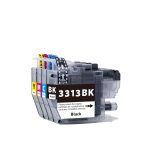
Brother LC3313 Ink Cartridge - Professional Recommended
Fits 1 printer model, including MFCJ491DW.
$17.20incl GSTIn stock in AucklandAdd to cart
Brother LC233 Ink Cartridge - Professional Recommended
Fits 6 printer models, including DCPJ4120DW, MFCJ4620DW, MFCJ480DW and more.
$9.98incl GSTIn stock in AucklandAdd to cart
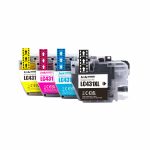
Brother LC431XL Ink Cartridge - Professional Recommended
Fits 2 printer models, including DCP-J1050DW, MFC-J1010DW.
$27.50incl GSTIn stock in AucklandAdd to cart

If your Brother is printing badly, do not buy ink yet

Faded print, missing colours or streaky lines on a Brother is more often a dried print head than an empty cartridge. Brother heads are fixed inside the printer, so they need cleaning in place.

Run the built-in cleaning cycle twice — no more — then leave the printer switched off overnight using its own power button. That alone fixes a large share of the calls we get. If it is still blocked after that, a proper cleaning kit is the next step, and it costs a lot less than a printer.

Buy it here
Printer Head Nozzle Cleaning Kit
$19.99incl GSTIn stock in AucklandAdd to cart

The full method, including what not to do, is in our print head guide.

Still not sure?

Call 0800 INKINK and tell us the printer model and what the page looks like. We would rather tell you not to buy something than sell you a cartridge that will not fix your problem.